






Drawers let you edit terrain and nonterrain via point-and-click tools.
What Are Drawers?
Drawers are Landshape commands that are similar to classic Sketchup tools. All let you interact with terrain, some also with nonterrain. You interact by clicking or dragging, akin to drawing on the terrain, using it as a canvas.
Why Use Drawers?
Use Draw tools to shape, style, mesh, and edit with your terrain. Most Drawers are special-purpose tools. Each works in different ways.
Draw tools can be both quite accurate and fast. For instance, the tool simply called Draw is excellent for drawing organic areas, single edges and even points, very quickly. Its output may then be used by Pickers.
How to Use Drawers
For a more about how to work with Drawers, see Draw Overview.
😊 Happy drawing!
List of All Draw Commands
Here are all of Landshape's Drawers, listed by top menu order:
Plot
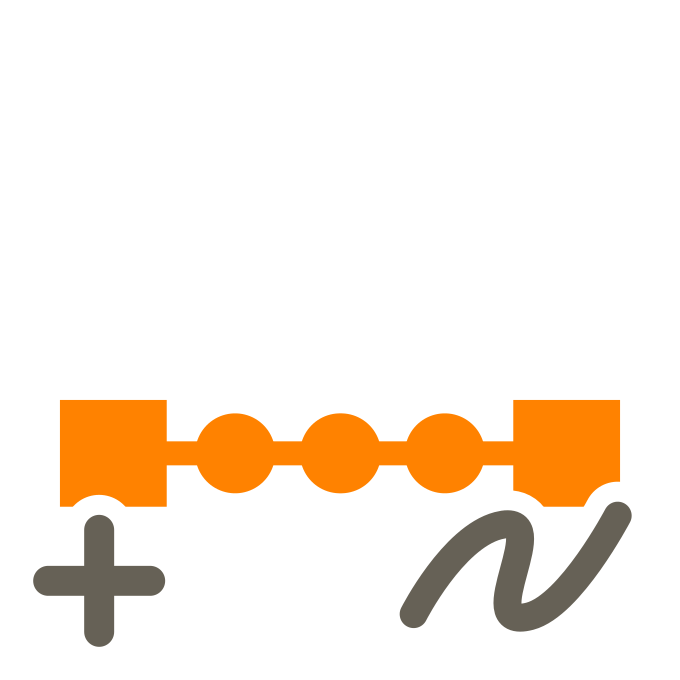
Create new Landshape terrain, or trim existing terrain, by drawing a rectangle.
Useful to quickly make new terrain plots of a rectangular form. Hold Alt to Plot-Quake, and see what you get. Embrace playfulness!
Menu: Extensions > Landshape > Draw > PlotDraw Sweep

Draw path, and auto-Sweep terrain along it.
Useful to quickly make e.g. road embankments, without requiring geometric input.
Menu: Extensions > Landshape > Draw > Draw SweepDraw Grade

Draw bounds, draw target edges-and-points, and auto-Grade terrain.
Useful to quickly Grade terrain, without input geometry
Menu: Extensions > Landshape > Draw > Draw GradeFill
Paint terrain zone by material.
Useful to change materials in your terrain. Will flood-fill the entire clicked Zone with the current material.
Menu: Extensions > Landshape > Draw > FillSplash
Pour water onto terrain up to picked level.
Useful to create lakes, sea, or ocean. The water surface will always be level.
Menu: Extensions > Landshape > Draw > SplashDraw Fence
Add or remove Fences by Zone, or by individual Edges.
Useful to quickly Fence or Unfence. Apply by one or two terrain materials. Inspect Fencing and terrain face topology.
Menu: Extensions > Landshape > Draw > Draw FenceDraw
Draw paths or bounds, to use as controls in other commands.
Useful to create Mask, Grade border, Sweep centerlines, and more. Draw on terrain to automatically drop onto terrain
Menu: Extensions > Landshape > Draw > Draw